Not sure what software you can use with a Huion drawing tablet? Here are the best free options for drawing, photo editing, vector design, animation, teaching, whiteboarding and PDF annotation.
Introduction
A drawing tablet is an input device, not a creative program in its own right. Once your Huion tablet is installed and its pen registers pressure correctly, it works inside whatever creative software you choose to open — there is no single required "Huion drawing app" you have to buy or use. This guide covers the strongest genuinely free options for actually creating with that tablet, across drawing, photo editing, vector design, animation, whiteboarding and note-taking, and is honest about which ones are completely free and which ones only look that way at first.
Everything here assumes your tablet is already installed and its pressure is working. If it isn't yet, our driver installation and setup guide covers that first, for both Windows and macOS.
What "Free Software" Actually Means
"Free" gets used loosely, and the differences matter once you rely on a program for real work:
- Completely free and open source. Free to use and open source, with the underlying code publicly available — anyone can inspect, modify or redistribute it. Development is usually funded by donations rather than sales. Krita, GIMP, Inkscape, Blender, Pencil2D and Xournal++ all fall here.
- Completely free, closed source. No cost to use, but the company that makes it keeps the source code private. MediBang Paint and Microsoft Whiteboard are this type — free, but not open source.
- Free tier. A genuinely usable free version exists, but a paid upgrade unlocks something meaningful — extra storage, no ads, or additional premium content. Adobe Fresco and Photopea are both free-tier: real, usable free versions, with a real paid upgrade behind them for specific extras.
- Free tier with a hard usage cap. Similar to the above, but the free version has a firm limit rather than just missing extras. Zoom Whiteboard's free plan is capped at three concurrently editable boards, not unlimited use.
None of these are used interchangeably below — each program is labelled with which of these it actually is.
- 01Best Free Drawing & Painting Software
- 02Best Free Photo Editing Software
- 03Best Free Vector Design Software
- 04Best Free Animation Software
- 05Best Free Whiteboard & Teaching Software
- 06Best Free Note-Taking and PDF Annotation Software
- 07Which Software Works Best With a Huion Tablet?
- 08Choosing Software Based on What You Want to Do
- 09Recommended Graphics Tablets Kenya Products
Best Free Drawing & Painting Software
Krita
Best for: illustration, digital painting, comic and concept art. Licence: completely free and open source. Supported OS: Windows 8.1 and later, recent macOS, modern Linux distributions, and Android. Pressure support: yes — Krita explicitly supports Wacom, Huion and XP-Pen tablets, and lets you switch between the older WinTab input method and the newer Windows Ink method if pressure isn't registering correctly on Windows.
Krita is the closest thing to a default recommendation for a new Huion owner: it's built specifically around tablet input, has a genuinely deep brush engine, and costs nothing at any point. Limitation to know: its photo-editing and precise vector tools are much weaker than GIMP's or Inkscape's — it's a painting program first.
MediBang Paint
Best for: comic/manga-style art and a simpler interface than Krita. Licence: completely free, but not open source. Supported OS: Windows and macOS (plus Android and iOS). Pressure support: yes, with confirmed pressure sensitivity for stylus input. Limitation to know: its brush engine is simpler than Krita's, and cloud-linked features tie into a MediBang account.
Adobe Fresco (free tier)
Worth a brief mention alongside the fully-free options above: Fresco now includes over 1,000 brushes at no cost, which covers most casual use. It is a free tier, not completely free — the paid plan mainly adds cloud storage beyond 5GB and premium fonts. It requires an Adobe account even on the free tier.
Best Free Photo Editing Software
GIMP
Best for: photo retouching, compositing and general image editing — the closest free equivalent to Photoshop for this purpose. Licence: completely free and open source. Supported OS: Windows, macOS and Linux. Pressure support: yes — recent GIMP versions (2.99/3.0) support pressure with simple hotplug detection on Windows. Important macOS-specific step: on a Mac, you may need to grant both the Huion driver and GIMP itself Accessibility and Input Monitoring permission under System Settings before pressure works — the same category of permission our driver guide covers for getting a tablet working on macOS at all.
Photopea (free tier)
Best for: quick Photoshop-style edits from a browser, no install required. Licence: free tier — free to use with ads, or around $5/month to remove ads and add cloud storage. Supported OS: any OS with a modern browser. Limitation to know: as a browser tool, its handling of tablet pressure depends on the browser and OS rather than a dedicated native driver integration, so it's a reasonable backup rather than a primary tool for pressure-sensitive work.
Best Free Vector Design Software
Inkscape
Best for: logos, line-art illustration, and any artwork that needs to scale cleanly to any size. Licence: completely free and open source. Supported OS: Windows, macOS and Linux. Pressure support: yes, through the Calligraphy tool specifically — but this is genuinely not automatic. Pressure and tilt response are off by default and have to be enabled through Inkscape's Input Devices dialog, then toggled on in the Calligraphy tool's own toolbar, before your tablet's pressure has any effect. If pressure "isn't working" in Inkscape, this setup step is usually why, rather than a tablet or driver fault.
Best Free Animation Software
Krita's built-in animation timeline
If you already have Krita for painting, its animation timeline is included at no extra cost — no separate program needed for simple frame-by-frame animation.
Blender (Grease Pencil)
Best for: 2D animation with more advanced tools than Krita's timeline, inside the same program used for 3D. Licence: completely free and open source. Supported OS: Windows, macOS and Linux. Pressure support: yes, standard tablet pressure input. Limitation to know: Blender's interface is built around 3D work first, so there's a real learning curve to reach the 2D Grease Pencil tools even if you never touch the 3D side.
Pencil2D
Best for: simple, traditional hand-drawn 2D animation without Blender's complexity. Licence: completely free and open source. Supported OS: Windows, macOS and Linux. Limitation to know: it's deliberately minimal — a good starting point for basic animation, not a replacement for Krita or Blender's deeper toolsets.
Best Free Whiteboard & Teaching Software
Microsoft Whiteboard
Best for: live teaching, brainstorming and sticky-note-style collaboration. Licence: completely free with a Microsoft account — no separate paid tier inside the app itself. Supported OS: a dedicated app exists for Windows 10 and 11. Important limitation: there is no native macOS desktop app — Mac users access Whiteboard through a web browser rather than an installed program, which is a real difference in experience, not just a smaller detail.
Zoom Whiteboard
Best for: sketching directly inside a Zoom call while teaching or presenting. Licence: free tier — the Basic plan includes Whiteboard, but caps you at three concurrently editable boards; paid plans remove that cap. Supported OS: works through the Zoom client or browser on any platform.
OBS Studio
OBS Studio isn't drawing software, but it's genuinely useful for the online-teaching use case this section covers: it's a completely free and open source screen recorder and streaming tool, for Windows, macOS and Linux, that lets you record or livestream a tablet-drawn lesson alongside your webcam and audio. If your "free software" need is really "how do I record my drawing tablet teaching a lesson," OBS is the missing piece the drawing apps above don't cover.
Best Free Note-Taking and PDF Annotation Software
Xournal++
Best for: handwritten notes and marking up PDFs directly with a pen — genuinely built around tablet pen input rather than adding it as an afterthought. Licence: completely free and open source. Supported OS: Windows, macOS and Linux. Pressure support: yes — Xournal++ explicitly lists support for Wacom, Huion and XP-Pen tablets, with stroke stabilisation for smoother handwriting. It covers both note-taking and PDF annotation in a single program, which is why this section doesn't list them separately.
Which Software Works Best With a Huion Tablet?
A Huion tablet has no built-in preference for any one program. The Huion driver is the connection and configuration layer — it's what makes your pen's position, pressure and button presses available to whatever software is running, the same way a keyboard driver makes key presses available to any program you type into. The actual creative work happens in Krita, GIMP, Inkscape or whichever application you open, not in the Huion driver itself.
On Windows, the practical thing that determines whether pressure works well in a given program is whether that program and the Huion driver agree on WinTab or Windows Ink as the pressure-data protocol — the same distinction covered in detail for Photoshop in our Photoshop setup guide, and it applies the same way to Krita, GIMP and other Windows software. On macOS, the recurring theme instead is Accessibility and Input Monitoring permission, which both the Huion driver and the specific creative app need granted individually — covered for the driver itself in our driver guide, and above for GIMP specifically.
In practice: Krita, GIMP, Xournal++ and Blender all have a strong, actively maintained track record of tablet support because pen input is core to what they do. Inkscape supports it but needs the manual setup step above. Browser-based tools like Photopea depend more on your OS and browser than on a dedicated driver integration.
Choosing Software Based on What You Want to Do
| What you want to do | Start with | Why |
|---|---|---|
| Illustration, digital painting, comics | Krita | Built around tablet input, completely free, strong brush engine |
| Photo editing and retouching | GIMP | The most capable free alternative to Photoshop-style editing |
| Logos and scalable vector artwork | Inkscape | Purpose-built for vector work; remember to enable pressure in the Calligraphy tool |
| 2D animation | Krita's timeline, then Blender or Pencil2D | Start simple, move up only if you need more advanced tools |
| Live teaching or brainstorming | Microsoft Whiteboard or Zoom Whiteboard | Depends on which platform your students already use — check the macOS and board-count limits above first |
| Handwritten notes or marking up PDFs | Xournal++ | The only tool here built for both at once |
| Recording or streaming a lesson | OBS Studio | Pairs with whichever drawing app you're teaching in — it isn't a drawing tool itself |
Recommended Graphics Tablets Kenya Products
Any of the software above works with any Huion tablet the driver supports — the products below are simply a practical spread for different starting points, not a requirement.
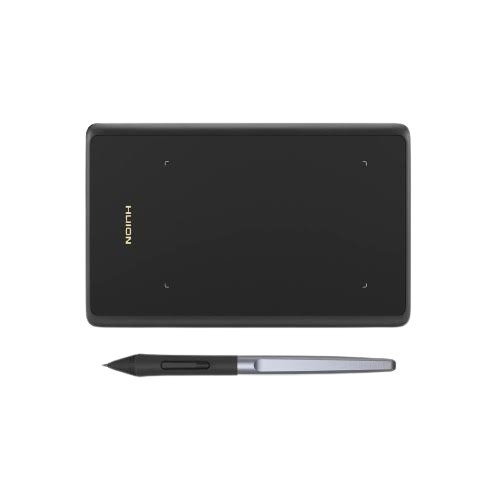
Huion Inspiroy H420X — Lightest Budget Start
A compact, screenless pen tablet with a 106 x 66mm (4.17 x 2.6 inch) working area and 8,192 levels of pressure sensitivity, currently Ksh 5,999 (from Ksh 6,999) and in stock. A practical, low-cost way to try Krita or MediBang Paint for the first time.
What's in the box: the H420X pen tablet, a Huion PW100 battery-free digital pen, 8 replacement pen nibs, a pen nib clip, a USB-C cable, a USB-C adapter, and a quick start guide.
See the full listing at Huion Inspiroy H420X.
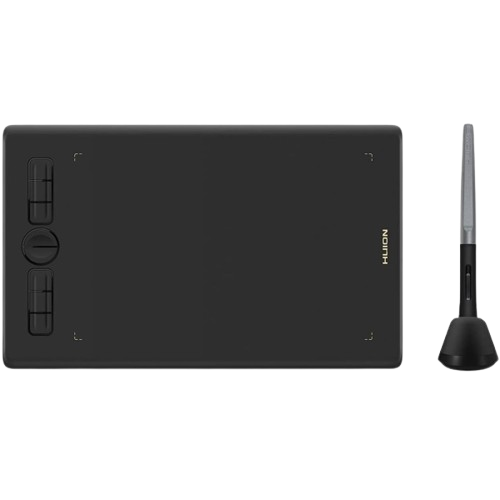
Huion Inspiroy H580X — More Room for GIMP or Inkscape
A mid-size pen tablet with a 203.2 x 127mm (8 x 5 inch) working area, ±60° tilt recognition and 8 programmable press keys, currently Ksh 9,999 (from Ksh 11,000) and in stock. The larger working area and full set of shortcut keys suit photo-editing and vector work where precision and quick tool-switching both matter.
What's in the box: the H580X pen tablet, a Huion PW100 battery-free digital pen, pen nibs with a removal tool, a USB-C cable, and a user manual.
See the full listing at Huion Inspiroy H580X.
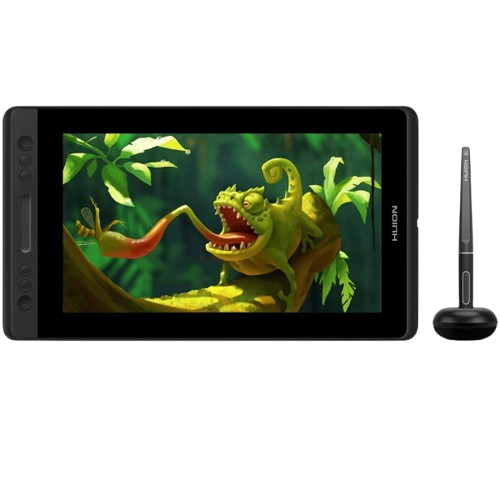
Huion Kamvas Pro 12 — Compact Screen for Notes and Whiteboarding
An 11.6-inch Full HD pen display with a touch bar and 4 programmable press keys, currently Ksh 35,000 (from Ksh 38,000) and in stock. Drawing directly on the screen suits handwritten notes in Xournal++ and live whiteboarding, where seeing your pen mark appear exactly under the pen tip matters more than on a screenless tablet.
What's in the box: the Kamvas Pro 12 pen display, a Huion PW507 battery-free digital pen, a Huion adjustable stand, a pen holder, 10 replacement pen nibs, a nib removal clip, a 3-in-1 HDMI and USB cable, a power adapter, a power cable, an artist glove, a cleaning cloth, and a quick start guide.
See the full listing at Huion Kamvas Pro 12.
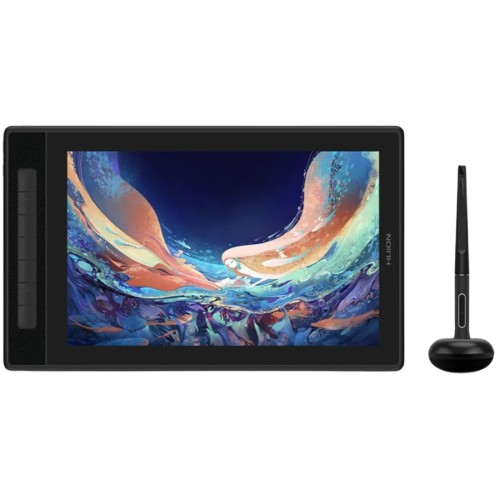
Huion Kamvas Pro 13 (2.5K) — Colour-Accurate Screen for Photo and Animation Work
A 13.3-inch QHD+ pen display with 99% Adobe RGB colour coverage and 7 programmable press keys, currently Ksh 55,999 (from Ksh 67,999) and in stock. The higher resolution and wider colour coverage are genuinely useful for photo editing in GIMP and for animation work in Blender or Krita, where accurate colour and fine detail both matter.
What's in the box: the Kamvas Pro 13 (2.5K) pen display, a Huion PW517 battery-free digital pen, a Huion ST200 foldable stand, a pen holder, 5 standard pen nibs, 5 felt pen nibs, a pen nib clip, a 3-in-2 cable, a USB-C to USB-C cable (1m), a USB power cable, a USB extension cable, an artist glove, a cleaning cloth, and a quick start guide.
See the full listing at Huion Kamvas Pro 13 (2.5K).
For more on what specific features like pressure levels and tilt actually do, see Product Features.
Frequently Asked Questions
Do I have to buy any software to use my Huion tablet?
No. The tablet needs its driver installed to work at all, but every program listed in this guide is free to download and use for normal creative work. Paid software like Photoshop is an option, not a requirement — our Photoshop setup guide covers that path if you already own it.
Is Krita really as good as Photoshop for drawing?
For painting and illustration specifically, Krita is widely considered comparable, and it's built around tablet input in a way general-purpose editors aren't. It isn't a photo-editing or precise-layout tool the way Photoshop is — GIMP is the better free choice for that.
Why isn't pressure working in Inkscape even though it works in Krita?
Inkscape's pressure and tilt response are switched off by default and only apply to the Calligraphy tool. Enable them in the Input Devices dialog and toggle pressure/tilt on in the Calligraphy tool's own toolbar — this is a one-time setup step, not a sign anything is broken.
Can I use Microsoft Whiteboard on a Mac?
Only through a web browser — there is no native macOS desktop app for Whiteboard, unlike on Windows. If you teach primarily from a Mac, Zoom Whiteboard may fit your workflow more naturally, keeping in mind its free-plan limit of three concurrently editable boards.
Are Adobe Fresco and Photopea actually free?
Both have a genuinely usable free version, so they aren't misleading marketing, but neither is completely free the way Krita or GIMP is. Fresco's free tier caps cloud storage at 5GB and reserves some fonts for paid plans; Photopea's free version is ad-supported, with a roughly $5/month plan to remove ads and add storage.
Do I need different software on Windows versus macOS versus Linux?
Mostly no — Krita, GIMP, Inkscape, Blender, Pencil2D and Xournal++ all run on all three. The exceptions are Microsoft Whiteboard, which has no native macOS app, and MediBang Paint and Adobe Fresco, which don't have Linux versions.
Next Steps
If your tablet isn't installed and connected yet, start with our driver installation and setup guide. If you already use Photoshop, our Photoshop setup guide covers pressure, shortcuts and workflow specifically for it. If you're still deciding which tablet to buy, our complete buying guide and our size guide cover that decision, or try Find My Tablet for a specific recommendation. For driver downloads by model, see Software Drivers, and if something in this guide doesn't resolve your issue, our Support team can help directly.